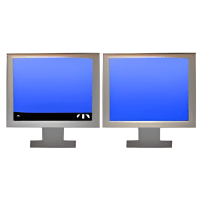
Taskbar on Second Monitor: What Actually Works (2026)
An honest answer, including what DMT can’t do — and the two-minute native fix.
The honest answer first
DMT does not add taskbars
Dual Monitor Tools has no taskbar feature and never has. If a “guide” tells you otherwise, it’s wrong. Here’s what actually solves it:
Option 1 — Windows 11 native (free, 2 minutes)
- Open Settings → Personalization → Taskbar.
- Expand Multiple displays and enable “Show taskbar on all displays”.
- Choose button behavior: show on all taskbars, or only on the taskbar where the window is open (cleaner).
Option 2 — dedicated tools (when native isn’t enough)
DisplayFusion Pro / Actual Multiple Monitors
If you want per-monitor system trays, custom button grouping, or taskbars that behave independently, that’s exactly what these paid tools sell — see our DMT vs DisplayFusion and DMT vs Actual MM comparisons.
Pro tips
- Many users run DMT + Windows native taskbars together: DMT handles cursor and window hotkeys, Windows handles the taskbar. Total cost: $0.
Frequently Asked Questions
Can Dual Monitor Tools add a taskbar to the second monitor?
No — DMT has no taskbar feature. Windows 11 can show the taskbar on all displays natively (Settings → Personalization → Taskbar → Multiple displays). For per-monitor taskbars with full customization, DisplayFusion Pro or Actual Multiple Monitors are the tools for that job.
How do I show the taskbar on both monitors in Windows 11?
Settings → Personalization → Taskbar → Multiple displays → turn on “Show taskbar on all displays”. You can choose whether buttons appear on all taskbars or only where the window is open.
Ready to try Dual Monitor Tools?
Free, open-source, and portable. Get version 2.13 now.
Download DMT v2.13 (Free)